Assignment templates
If you want to use the same assignment settings for several assignments, you should use Simplylearn’s assignment templates. This allows you to save the settings in one assignment and upload the same settings in other assignments. How to create new templates and upload existing templates Go to the specific assignment that you want to save as a template or load an existing template to. Open the settings tab. Scroll down…
Published 10 January 2022

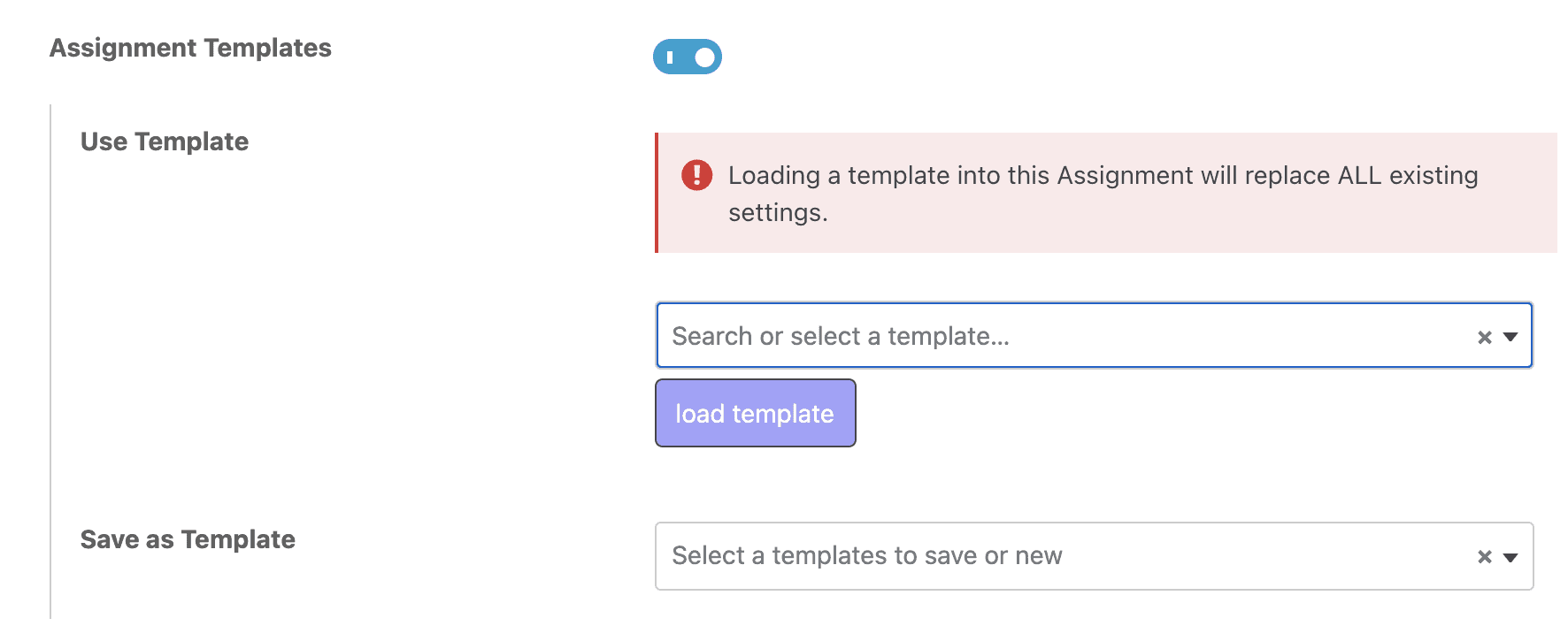
If you want to use the same assignment settings for several assignments, you should use Simplylearn’s assignment templates. This allows you to save the settings in one assignment and upload the same settings in other assignments.
How to create new templates and upload existing templates
- Go to the specific assignment that you want to save as a template or load an existing template to.
- Open the settings tab.
- Scroll down to “Administrative and Data Handling Settings”.
- Activate “Assignment templates”
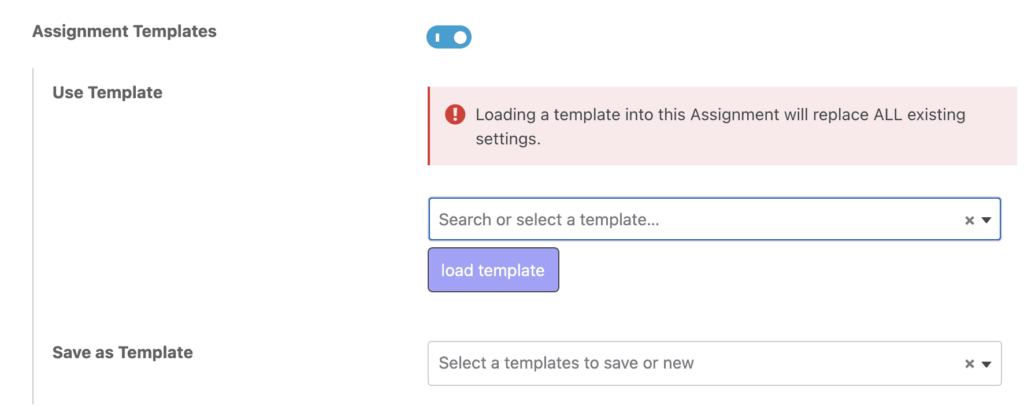
- Either save the settings as a new template or use an existing template.
Related articles
Book a free demo today and let us discover how we can serve your company.